
1. Introduction
2. Theme Installation
3. Step-by-Step Layout Installation
4. Layout Usage & Edit
5. Additional Tips
6. Troubleshooting
7. Support
1. 📘 Introduction – Brizy Layouts Installation Guide for New Brizy Websites
This guide helps you install Brizy Layouts on a fresh WordPress website. Whether you’re using free or pro layouts from BrizyThemes, this step-by-step walkthrough covers everything.
But please note, all the most important theme usage questions are detailed in this documentation file, so we highly recommend check this guide.
Theme Information:
- Name: Brizy Themes
- Author: Brizythemes
- Platform: WordPress – Brizy Page Builder
- Version: 1.0 Initial Release
Requirements:
Before you begin, make sure you have
- A live WordPress website (hosted)
- Latest version of WordPress installed
- Install One of the WordPress Themes Blocksy, Astra, OceanWP, Neve, and Zakra
- Brizy Page Builder plugin (Free and Pro) – Pro Must Required.
Note: We are highly recommended ” Blocksy Theme Or Blocksy Child Theme ” Install & Activate before import brizy layouts
2. Theme Installation step by step guide
login into your wordpress website and then follow the image below steps Appearance > Themes > search blocksy
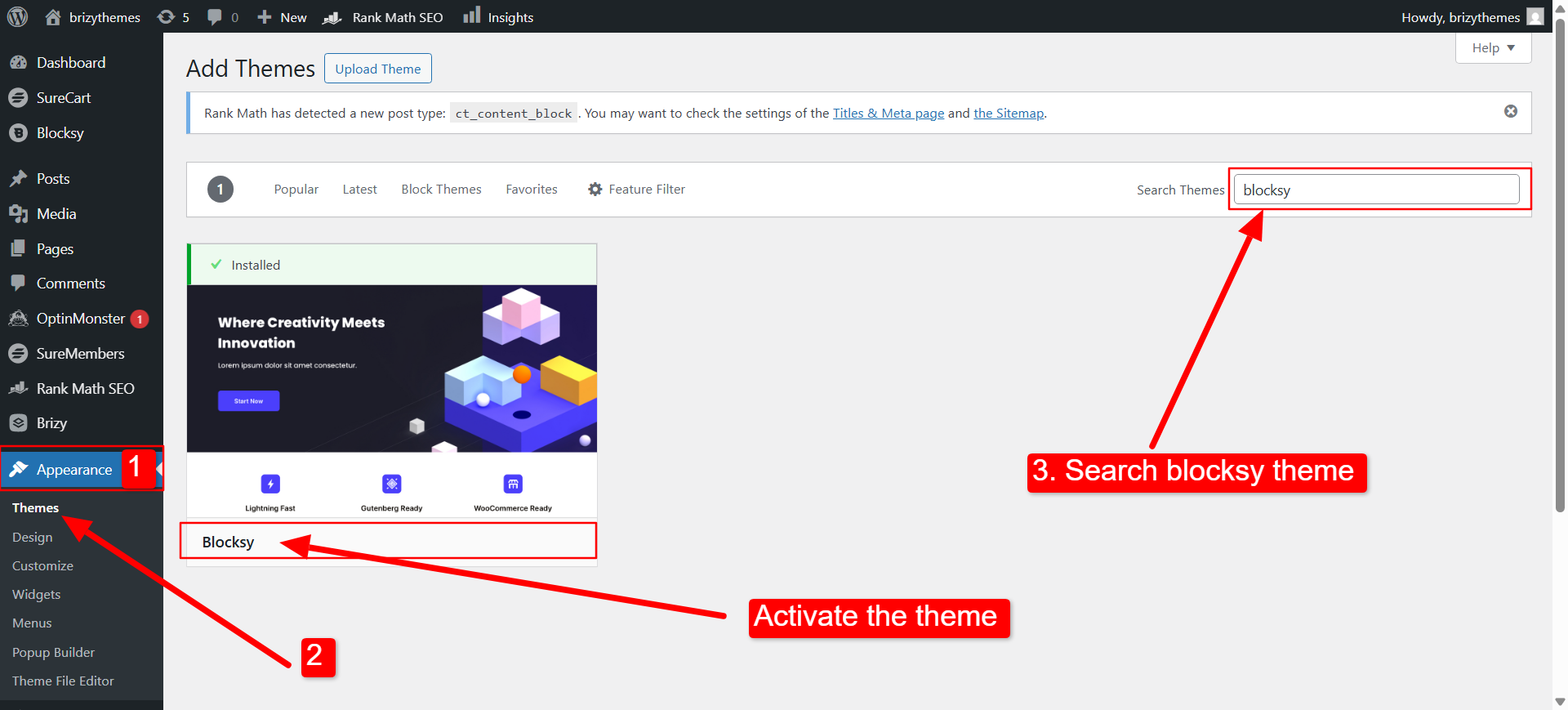
Hey you have sucessfully installed blocksy theme
3. 🔧Step-by-Step Layout Installation
🔧 Step 3.1: Install and Activate Brizy Plugin
- Log in to your WordPress Admin Dashboard.
- Go to Plugins → Add New
- Search for Brizy.
🔁 If you have Brizy Pro:
- Upload the Pro plugin by going to Plugins → Add New → Upload Plugin
- Choose the
brizy-pro.zipfile, install, and activate. - Enter your license key under Brizy → License.
Step 3.2: Importing Brizy Layouts
Option 1: Using Brizy Cloud Sync (for templates downloaded from BrizyThemes if sync enabled)
-
Go to Pages → Add New → Click Edit with Brizy.
- Inside the Brizy editor, click the “+” Add Block.
- Select Saved, then click the Sync icon 🔄.
- Your imported templates will show under “My Layouts” (if connected to Brizy Cloud).
Option 2: Manual Import (.zip Layout Files)
-
From the WordPress Dashboard, go to Brizy → Saved Layouts.
- Click Import Layout (top right).
- Choose the
.ziplayout file you downloaded. - The layout will now appear under your Saved Layouts.
Step 3.3: Using the Imported Layout on a Page
-
Create or open a page: Pages → Add New → Edit with Brizy.
- In Brizy editor, click the “+” Add Block button.
- Select the “Saved” tab.
- Click your imported layout to insert it into the page.
- Customize content, text, and images as needed.
-
Publish your page.
follow this Below image Visual step by step import layouts.
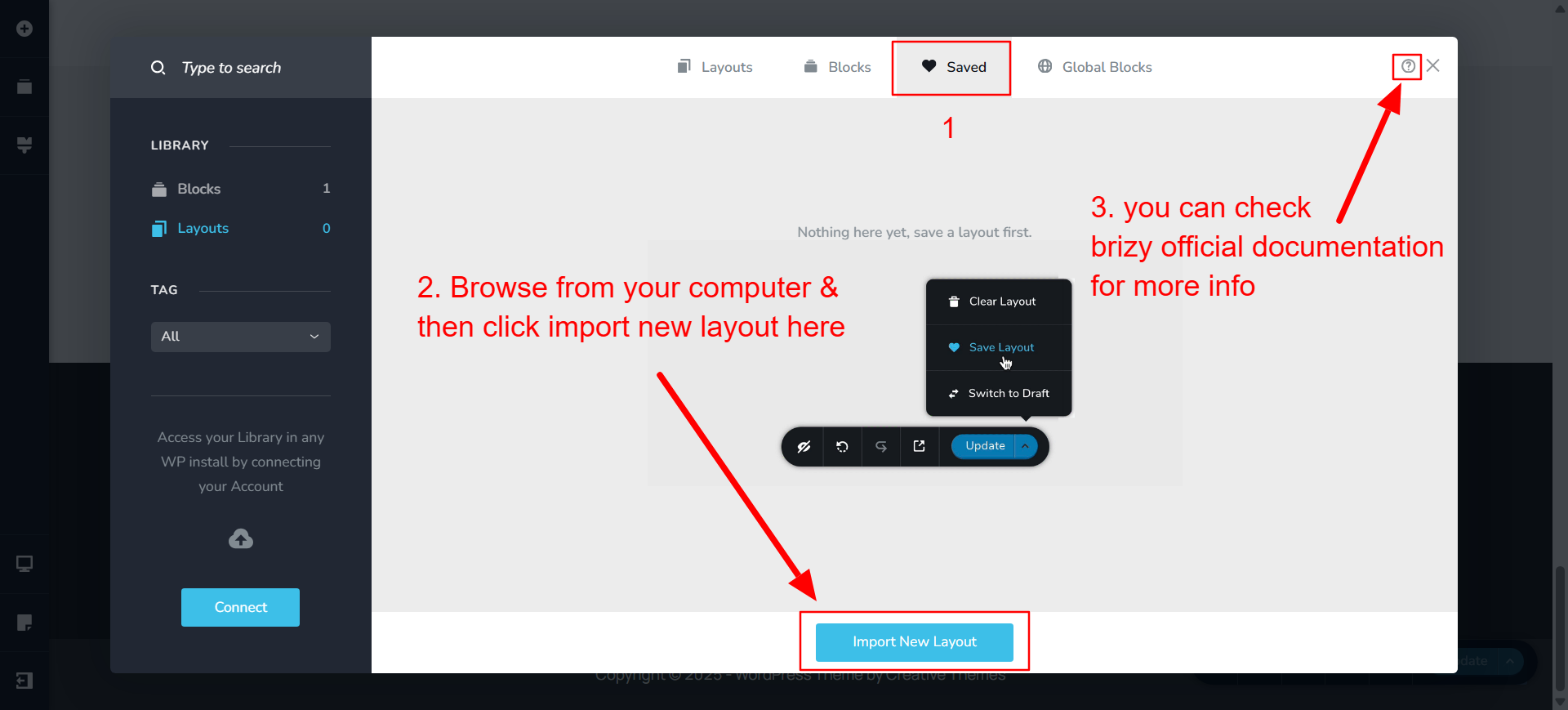
4. 🎨Layout Usage & Edit
follow this Image steps to edit and save the layout content
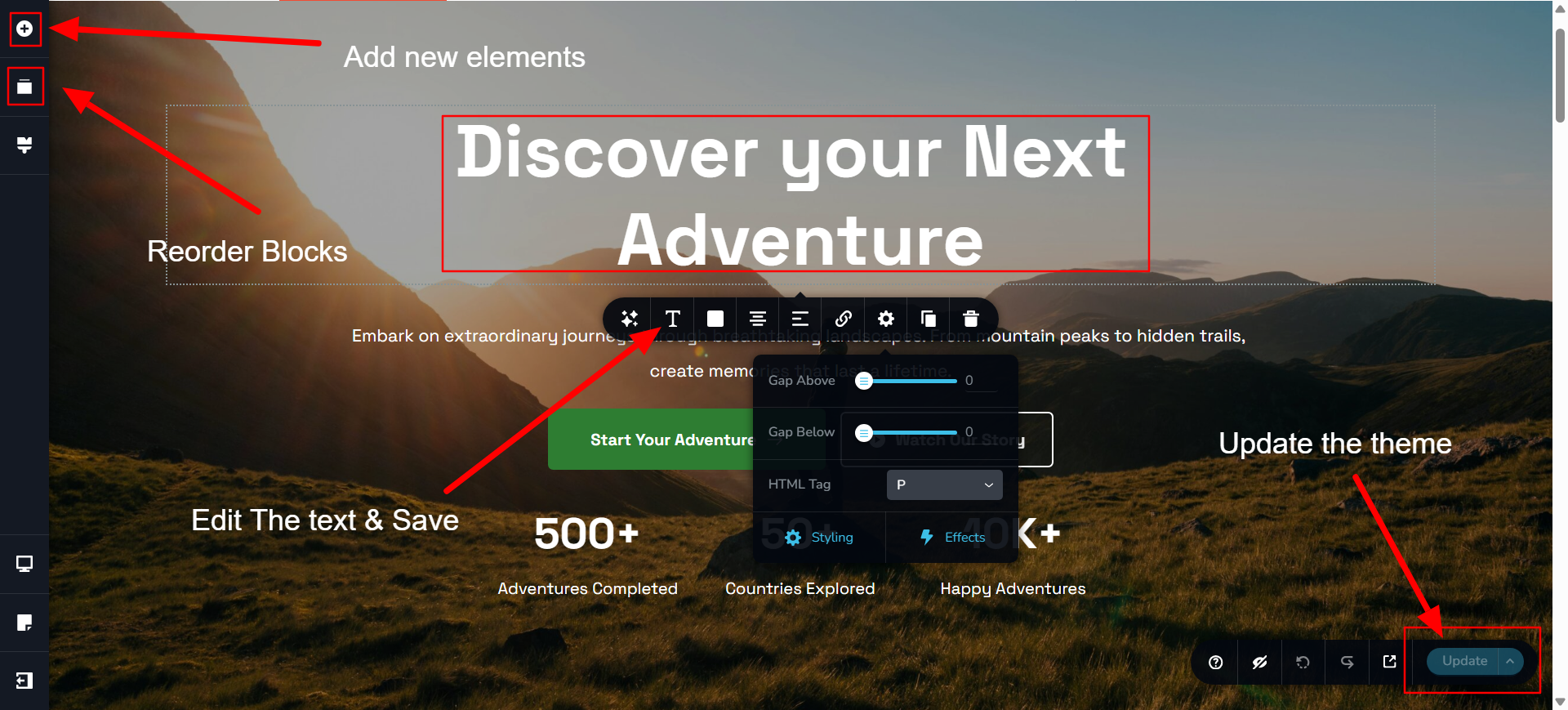
5. 🎨 Additional Tips
-
You can mix multiple blocks from different layouts.
- Use Global Styles in Brizy to update fonts/colors site-wide.
- Layouts are fully responsive—customize for tablet/mobile from the editor.
- For better performance, use caching and optimization plugins like WP Rocket or LiteSpeed Cache.
6. 💡 Troubleshooting
-
Issue: Layout not showing? – Ensure the layout is imported correctly and Brizy is activated.
-
Can’t edit with Brizy ? – Check for plugin conflicts, clear cache, and update all plugins.
-
License key not working? – Contact Brizy support or verify it under your Brizy account.
7. Support
If you have any questions, please use our profile contact form on : https://www.templatemonster.com/authors/risethemes/
Note: The images in the demo are included in the product.